

Process Improvement through Documentation
|
April 29, 2026
|

Master the Windows Step Recorder for Efficient Documentation
Key Highlights
- The Windows Step Recorder (formerly PSR) is a built-in tool for documenting user actions on Windows computers.
- It captures mouse clicks, keyboard inputs, and screenshots, creating a detailed log that can be shared easily.
- Effective documentation with the Step Recorder enhances operations and knowledge sharing within teams.
- PSR saves up to the last 25 screenshots; older ones are overwritten when the limit is reached.
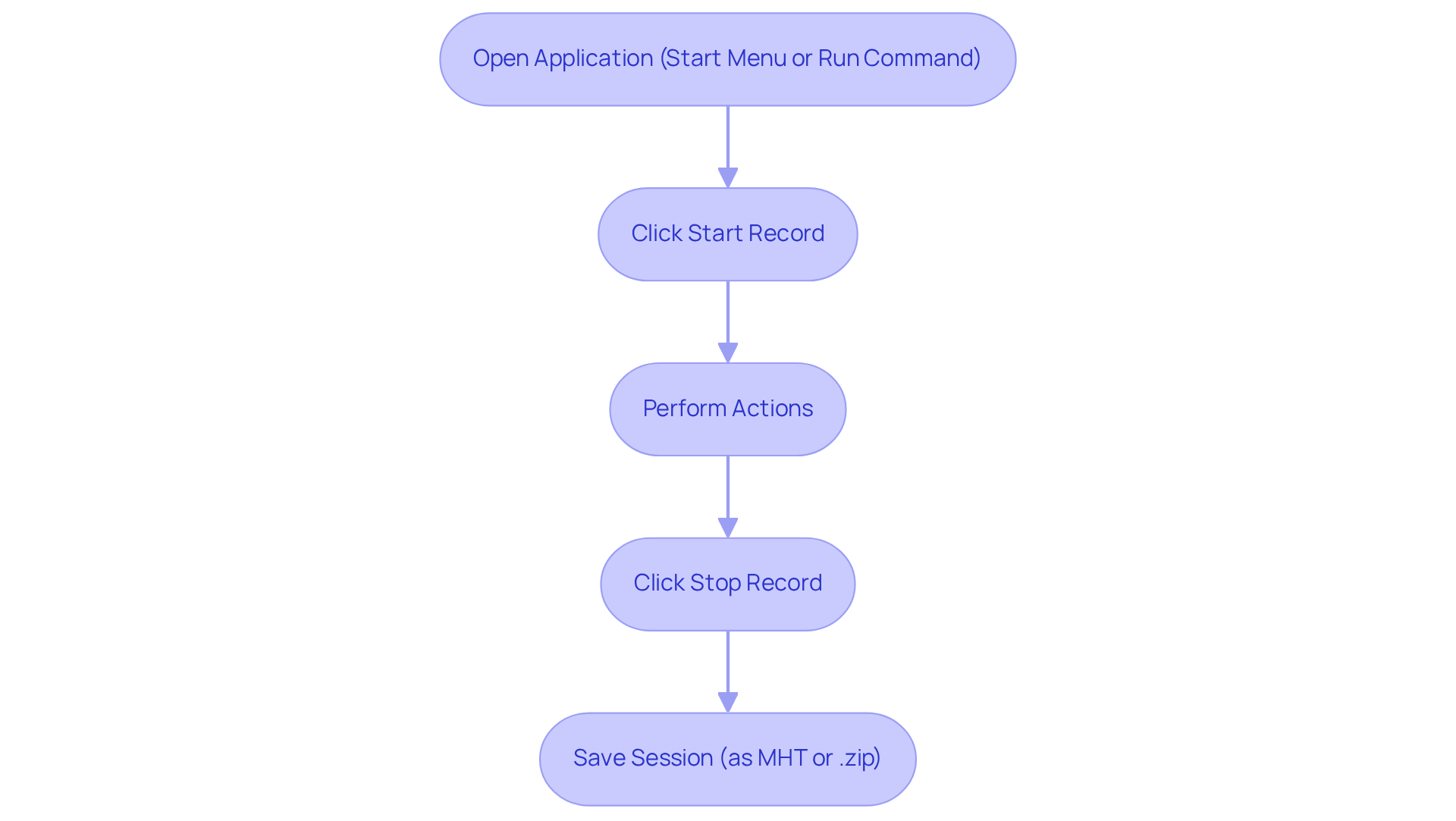
- To use the Step Recorder, open it via the Start Menu, click 'Start Record,' perform actions, and then save the session as a .zip file.
- Users can add comments during recording for clearer documentation.
- Common troubleshooting steps include ensuring the OS is up to date, managing background applications, adjusting screen resolution, and checking disc space for saving files.
- The Step Recorder is set to be deprecated starting February 2024, prompting users to plan their documentation strategies accordingly.
Introduction
You might be wondering about the Windows Step Recorder. It’s a powerful tool that often doesn’t get the attention it deserves! This handy feature lets you easily document your computer activities by capturing every mouse click and keyboard input. Imagine having a comprehensive log that can boost your knowledge sharing and streamline your workflow. But here’s the catch: it’s set to be deprecated in February 2024. So, how can you make the most of it before it’s gone? Let’s dive into the functionalities and practical applications of the Windows Step Recorder to uncover solutions to those pesky documentation challenges we all face in our daily tasks.
Understand the Windows Step Recorder
You might be wondering how the , previously known as Problem Steps Recorder (PSR), can simplify your life. This handy built-in tool in Windows lets you . It captures mouse clicks, keyboard inputs, and screenshots, that you can easily share. This is super useful for crafting , troubleshooting materials, and .
Experts really emphasize the value of keeping accurate records. Why? Because can streamline operations and within teams. For instance, did you know that PSR only saves up to the last 25 screenshots? If you snap 30 during a session, the oldest ones will be overwritten, ensuring you keep the most relevant info at hand.
Now, let’s dive into how to use the like a pro. You can kick things off by opening the application from the Start Menu or just typing 'psr' in the Run command. Once it's up and running, click 'Start Record,' do your thing, and then hit 'Stop Record' to save your session. The recorded info, complete with timestamps and a chance to add comments, gets saved as an MHT file that you can view in a web browser. Plus, you can save it as a compressed .zip file for easy sharing. This process not only simplifies but also cuts down on lengthy meetings, allowing teams to focus on more strategic tasks.
Practical uses of this procedure logger really show off its efficiency, especially in . For example, many organizations have successfully used it to document onboarding processes, providing new hires with clear, step-by-step instructions. By making the most of the Step Tool's features, teams can enhance their recording efforts, making processes clearer and more accessible. As Tim Fisher, Senior Vice President & Group General Manager, Tech & Sustainability, puts it, 'The is an integrated screenshot tool that is ideal for creating step-by-step guides or documenting troubleshooting procedures.' Just a heads-up: the Steps Tool is set to be deprecated starting February 2024, so keep that in mind when planning your documentation strategies!
Access and Start the Windows Step Recorder
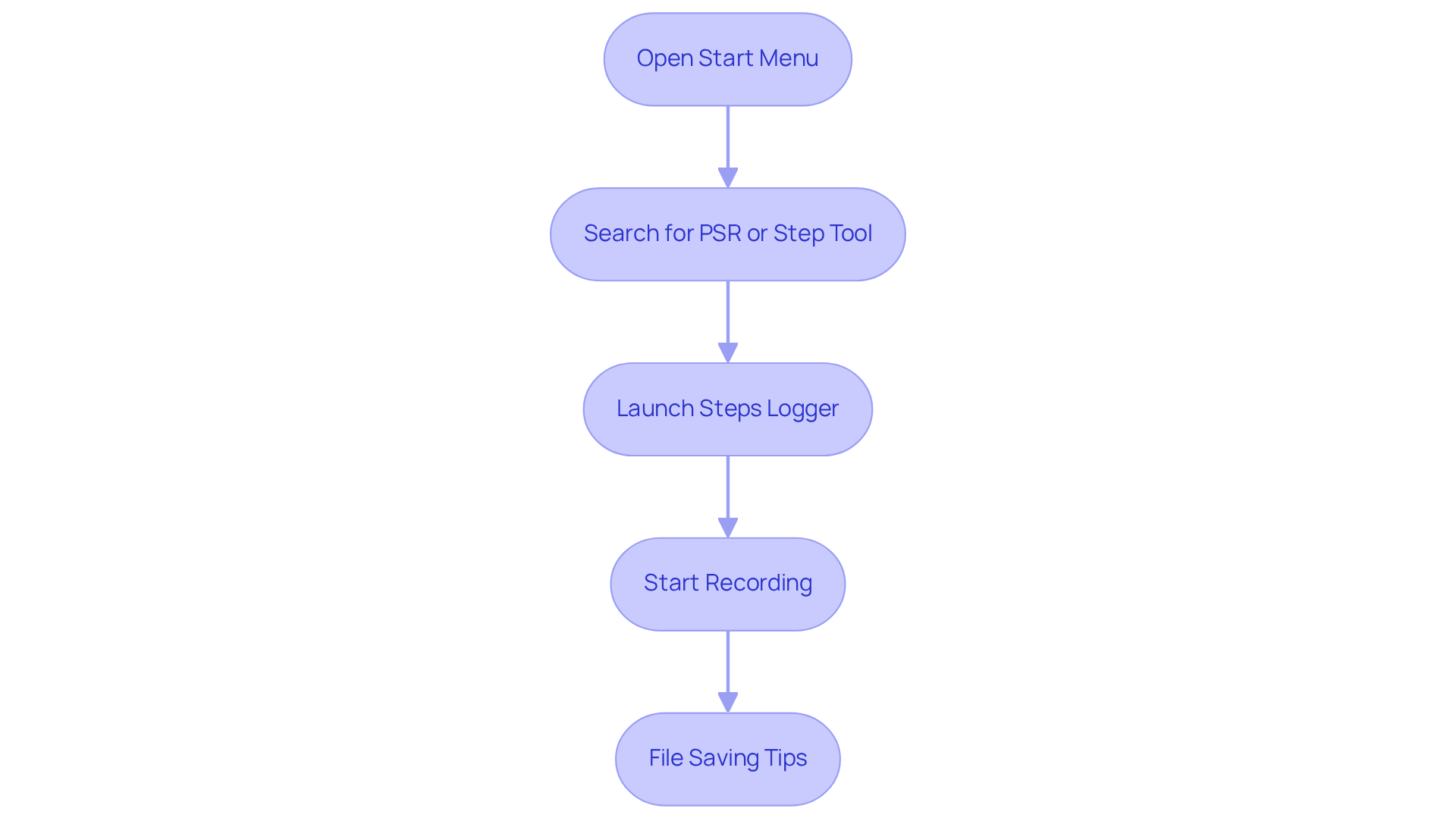
Are you looking to get started with the ? It’s easier than you might think! Just follow these simple steps:
- Open the Start Menu: Go ahead and click on that Windows icon in the bottom-left corner of your screen.
- by typing 'PSR' or 'Step Tool' into the search bar and hitting enter.
- Launch the Application: Click on the 'Steps Logger' application that appears in your search results, which is part of the .
- : Once the app is open, just hit the 'Start Record' button in the to begin capturing your actions. You can pause and resume the , and feel free to add comments for extra context on each step.
Now, here’s a handy tip: the will be saved as a compressed .zip file, which includes an .mht file that you can review in web browsers like Internet Explorer or Edge. Just a heads up—the default number of saved screen captures in PSR is 25. Make sure your user account has write permissions for the destination folder where your recordings will go, so you won’t run into any hiccups.
By following these steps, you’re all set to like a pro! This will not only help you more effectively but also . So, why not give it a try?
Record Steps Using the Windows Step Recorder
Do you want to use the to record your steps? Here’s how to get started:
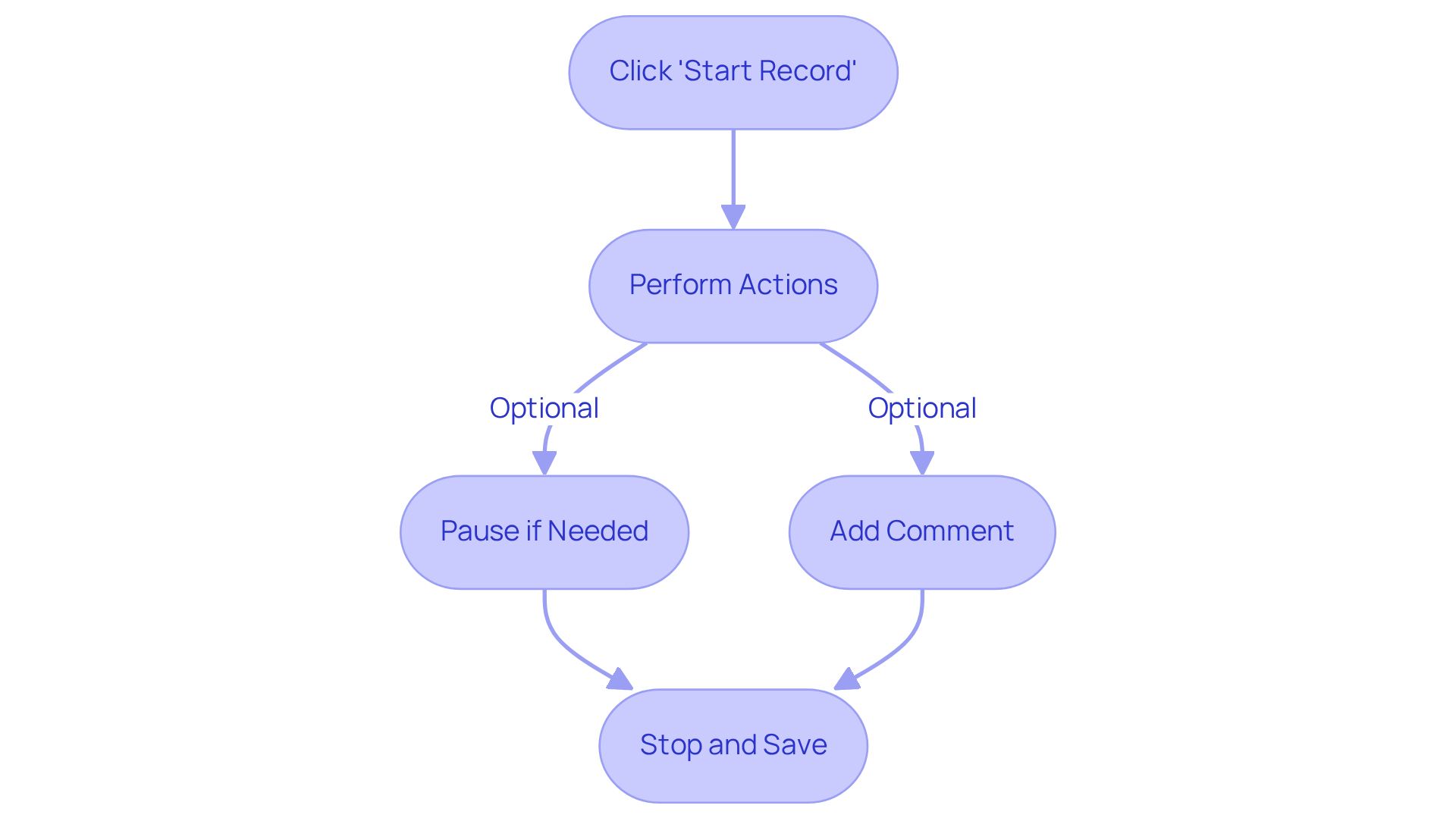
- First off, click 'Start Record' and then perform the actions you want to document. The will automatically capture your mouse clicks and keyboard inputs—easy peasy!
- Now, if you feel like adding some context, just hit the 'Add Comment' button. This lets you annotate specific steps, making your records even clearer.
- Need a break? No problem! Just click 'Pause'. When you’re done recording, hit 'Stop' to wrap things up.
- Once you stop the recording, you’ll be prompted to save your file. Choose a spot to save it as a .zip file, which will include all your recorded steps and screenshots.
By following these steps using the , you’ll of your actions that can be super helpful for . So, why not give it a try? You might be surprised at how handy it is!
Troubleshoot Common Issues with the Step Recorder
If you’re encountering problems with the , don’t worry! Here are some that might help you out:
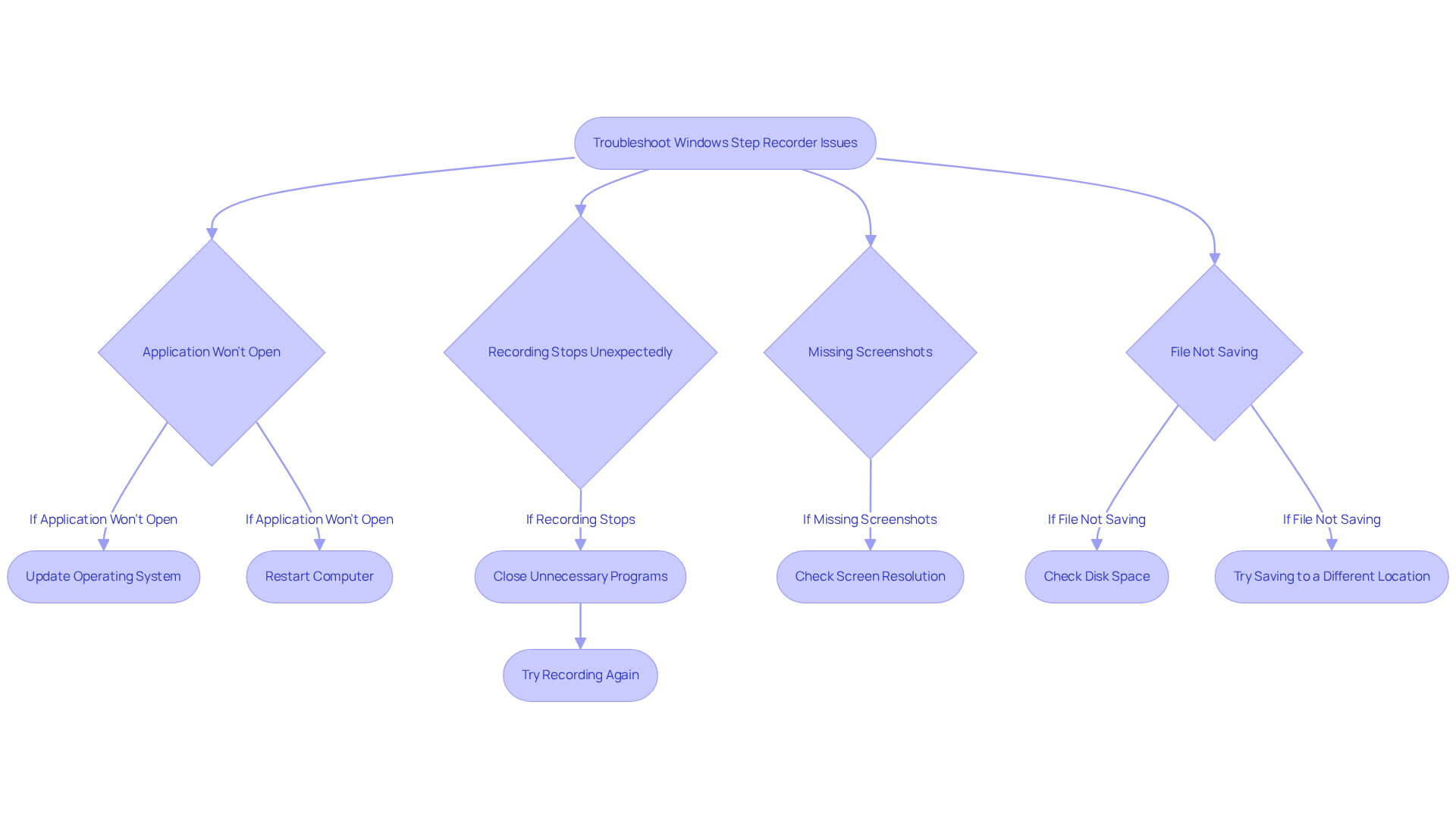
- First things first, make sure your operating system is up to date. If the application still won’t open, try giving your computer a quick restart. Oh, and just so you know, is also called in version 7—this little tidbit might clear up any confusion about the names.
- Recording Stops Unexpectedly: You might be wondering if there are any causing a hiccup with the Step Recorder. Close any unnecessary programs and give recording another shot. The functionality of Windows 7 PSR is designed to help you document your actions effectively, so keeping everything running smoothly is key!
- Missing Screenshots: If your screenshots aren’t showing up, check that your screen resolution is set to a compatible level. A quick tweak in your display settings could do the trick! Remember, the PSR tool is here to help you reproduce issues, and capturing those screenshots is super important for .
- File Not Saving: If you’re having trouble saving your recording, make sure you have enough disk space and try saving it to a different spot. By the way, the PSR tool has a solid rating of 4.9 out of 5 based on 63 votes, so you know it’s effective for troubleshooting!
By following these troubleshooting steps, you can tackle common issues and keep using the effectively for your record-keeping needs. Plus, integrating these practices into a broader , like , can really amp up your game!
Conclusion
Mastering the Windows Step Recorder can really change the game when it comes to how we approach documentation. It’s a must-have tool for anyone looking to make their workflow smoother. By tapping into this handy built-in feature, you can easily record your actions, capturing all the essential details that boost clarity and knowledge sharing within your team. As more organizations start to see the value of effective documentation, the Step Recorder stands out as a practical way to simplify this process.
You might be curious about how to make the most out of the Windows Step Recorder. Throughout this article, we’ve shared some key insights on accessing and using it efficiently. From launching the application to recording your actions and troubleshooting common hiccups, we’ve laid out each step to ensure you have a seamless experience. The tool's knack for creating comprehensive records—complete with screenshots and annotations—makes it especially useful for crafting standard operating procedures and streamlining onboarding processes. It really shows off its versatility in various scenarios!
So, what’s the takeaway? The Windows Step Recorder isn’t just a tool; it’s your gateway to better documentation practices that can boost efficiency and collaboration within teams. With the Step Tool set to be deprecated in February 2024, now is the perfect moment to weave it into your documentation strategies. Embracing this technology will not only ramp up your individual productivity but also help cultivate a culture of knowledge sharing that’s crucial for organizational success. Let’s get started on this journey together!
Frequently Asked Questions
What is the Windows Step Recorder?
The Windows Step Recorder, previously known as Problem Steps Recorder (PSR), is a built-in tool in Windows that allows users to document their actions on a computer by capturing mouse clicks, keyboard inputs, and screenshots.
How does the Windows Step Recorder help with documentation?
It simplifies documentation by creating a detailed log of activities that can be easily shared, making it useful for crafting how-to guides, troubleshooting materials, and standard operating procedures (SOPs).
What is the limitation regarding screenshots in the Windows Step Recorder?
The Windows Step Recorder saves only up to the last 25 screenshots. If more than 25 screenshots are captured, the oldest ones will be overwritten.
How do you start using the Windows Step Recorder?
You can start the Windows Step Recorder by opening the application from the Start Menu or by typing 'psr' in the Run command. Then, click 'Start Record,' perform your actions, and hit 'Stop Record' to save your session.
What format does the Windows Step Recorder save recorded information in?
The recorded information is saved as an MHT file, which can be viewed in a web browser. It can also be saved as a compressed .zip file for easy sharing.
What are some practical uses of the Windows Step Recorder?
It is particularly effective for documenting onboarding processes and creating clear, step-by-step instructions for new hires, as well as for developing standard operating procedures (SOPs).
Is there any important information regarding the future of the Windows Step Recorder?
The Windows Step Recorder is set to be deprecated starting February 2024, so users should consider this when planning their documentation strategies.
List of Sources
- Understand the Windows Step Recorder
- learn.microsoft.com (https://learn.microsoft.com/en-us/troubleshoot/microsoft-365-apps/settings/how-to-use-problem-steps-recorder)
- lifewire.com (https://lifewire.com/what-is-steps-recorder-psr-2625976)
- ninjaone.com (https://ninjaone.com/blog/enable-or-disable-steps-recorder-in-windows)
- cocosenor.com (https://cocosenor.com/articles/windows-10/how-to-use-and-set-steps-recorder-on-windows-10.html)
- meziantou.net (https://meziantou.net/how-to-create-a-good-bug-report-using-problem-steps-recorder.htm)
- Access and Start the Windows Step Recorder
- learn.microsoft.com (https://learn.microsoft.com/en-us/troubleshoot/microsoft-365-apps/settings/how-to-use-problem-steps-recorder)
- ninjaone.com (https://ninjaone.com/blog/enable-or-disable-steps-recorder-in-windows)
- isumsoft.com (https://isumsoft.com/windows-tips/open-and-use-steps-recorder-in-windows-10.html)
- excellence-it.co.uk (https://excellence-it.co.uk/insights/windows-step-recorder)
- vircom.com (https://vircom.com/blog/how-to-use-problem-steps-recorder-to-easily-document-bugs-and-more)
- Troubleshoot Common Issues with the Step Recorder
- aiseesoft.com (https://aiseesoft.com/resource/windows-steps-recorder.html)
- computerperformance.co.uk (https://computerperformance.co.uk/windows-7/psr)
- testingtoolsandtechniques.wordpress.com (https://testingtoolsandtechniques.wordpress.com/2015/01/28/problem-steps-recorder-a-simple-tool-that-can-be-used-for-reporting-bugs)
👍
What others are liking


5 Steps to outline your ideal documentation structure
5 MINS READ
Where to start the your journey of mapping out your ideal documentation structure, aligning it with the very heartbeat of your organization?
Defining a winning level of detail in your process
3 MINS READ
What is too much detail, and what is too little? This article described in that winning level detail about what detail is enough.


